DSAR- General
Overview
A user can place Data Subject Access Requests (DSAR) to an organization for accessing, modifying, or deleting their personal data. Currently, users can submit various request types such as opt-out, unsubscribe, delete, copy, summary of data, and data correction. The type of request a user can make depends on the applicable privacy laws governing their business operations and service locations.
This version improves readability and emphasizes the compliance aspect tied to privacy laws.
The Administrator gets a notification when --
User makes a service request
A request gets verified
Additional information is submitted by the requester if needed.
Each request is processed based on the Flow mapped to it, which can be executed either manually by an administrator or automatically through configured automation settings. Each request can be processed differently, based on various aspects like the region, user inputs in different fields on the request form, and more. Once a user places the request, it is seen on the DSA Request dashboard, under the Active Requests section. You can refer to this guide to know how a request is processed in each stage - DSAR - User Guide.docx
Creating a Flow
Each stage of the flow can be configured in different ways based on how you want the request to be processed.
To configure the request flow,
- Log into Data Governance tool.
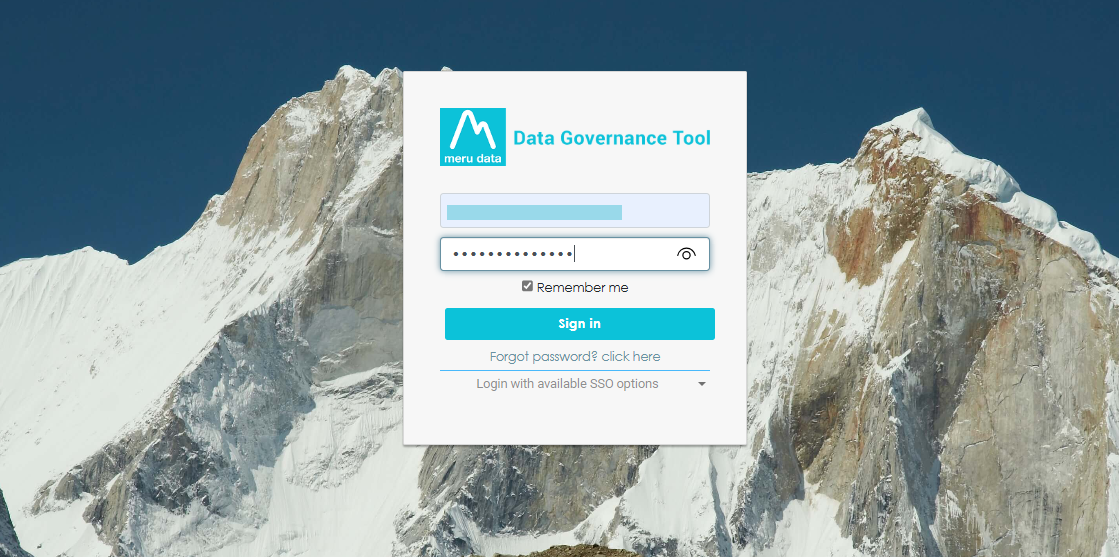
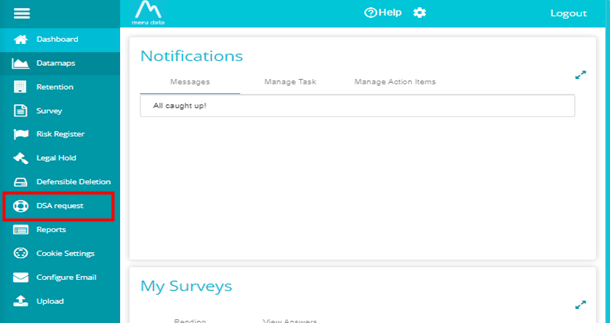
- From the Main Screen of Data Governance Tool, click on DSA Request, present on the hamburger menu on the left of the screen.
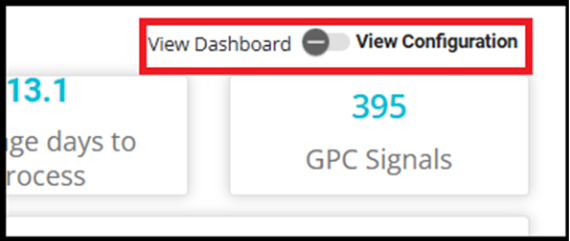
- Switch the toggle to View Configuration.
Go to the 'Flow' tab.
Enter the Flow Label in the provided text box.
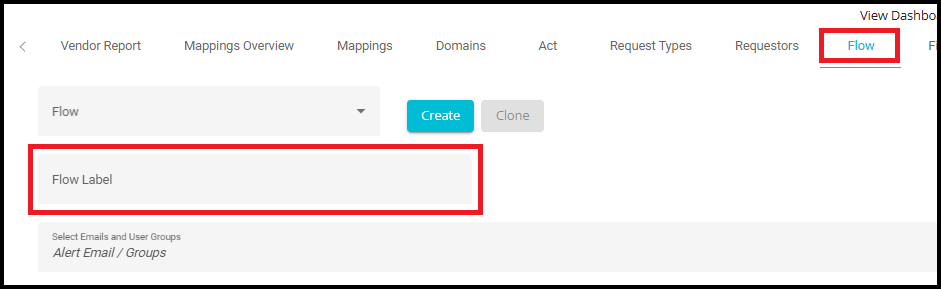
- Click on the 'Create' button to create the new flow.
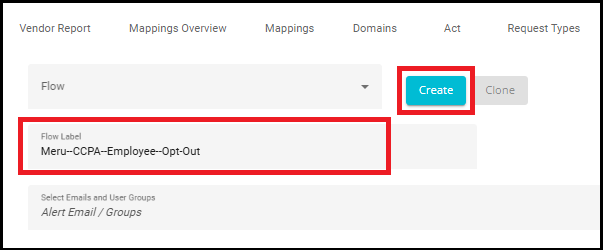
- When setting up a new tenant or creating the flow for the first time, the Create option will appear. From the second time onward, you will have the option to clone existing flows for easier setup and reuse.
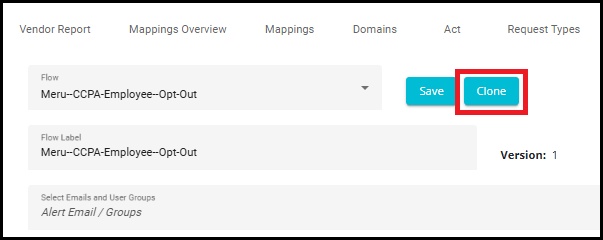
Note: The Flow tab on the DSAR configuration provides different customizations to process the request. Each option comes with unique functionalities that decide the flow of your request.
Once you click Create, the system will display:
Version Number -- Indicates the version of the flow you just created (e.g., Version: 1).
Flow ID -- A unique identifier assigned to the flow (e.g., Id: 283).
Created By -- The name of the user who created the flow.
Created Date & Time -- The exact timestamp when the flow was created.


Alert Email
When an email address or email group is added under Alert Email,those recipients will receive notifications for all major process events. This includes notifications when:
A new request is submitted
A request email address is verified
Additional information is provided
A validate action item is completed
A process action item is completed
A request submission fails
These alerts ensure that admins and relevant stakeholders are promptly informed about important updates and any issues during the DSAR workflow.
Open the 'Alert Email / Groups' section under the Flow configuration.
The selected email addresses or user groups will receive notifications whenever a new request is submitted and for all processing-related updates.

Active
- This checkbox is used to make the flow active. When selected, the flow becomes operational and can process requests according to its configuration. If unchecked, the flow is inactive and will not be executed.
Automate New Request
- When this is checked, it means that any newly received DSA (Data subject Access) request type is mapped to this automated workflow; the system will process the request according to the phases enabled in the automation settings. The workflow may run end-to-end or only for specific phases, such as automating only verification, only validation, or automating verification, validation, and process while keeping the completion manual. This allows you to tailor automation to your requirements, ensuring that requests are handled efficiently based on the configured flow.

Automate Completion
If this option is enabled, the request will be moved to its final state (such as Closed, Rejected, Completed, etc.) automatically after processing.
Check the 'Automate Completion' option if you want the request to be autocomplete.

Pre-processing
- Pre-processing is an optional stage in the DSAR flow configuration that allows you to perform additional actions before the main request is processed. It is useful when certain related tasks need to be completed in parallel to the primary request to ensure compliance or improve efficiency.
How it Works
- When pre-processing is enabled, a new stage called pre-processing appears in the flow.
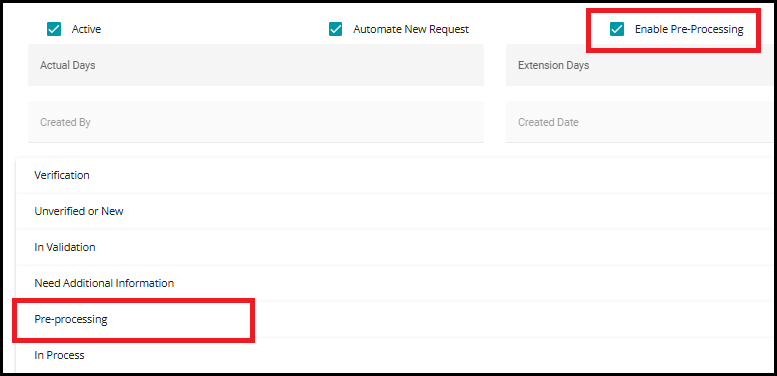
- You can map an existing flow as the pre-processing stage for the current request.

- Action items from the selected flow will run in parallel with the main request's process stage, without waiting for the main flow to complete.
Example
User submits a Delete request to remove their personal data.
At the same time, initiates an Opt-Out process as a pre-processing step.
This ensures the user is opted out from targeted advertising or sale/share of data internally, even before the deletion is finalized.
Click on the Next button to update the changes.
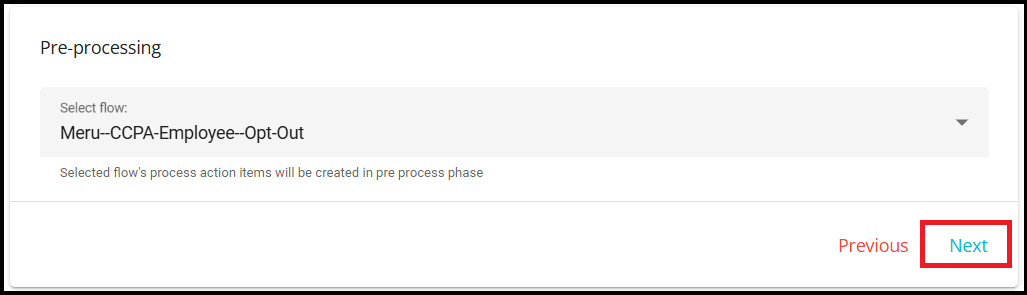
The user can now see a pre-process option under the 'Process Request' stage in the DSA Request screen. Now, all the action items configured for the selected flow's process phase will appear as the pre-process action items for the current request.
Due Dates:
The processing time for DSAR requests can be configured according to the privacy laws relevant to the business and service locations. Each request type may have different timelines, and extensions can also be applied where allowed.
Actual Days -- Time required to process a DSA request.
Extension Days -- Additional time required to process the request, in case of a delay.
Click on the 'Actual Days' tab.
Type the number of days at a requirement.

Note: Instead of typing the number, you can use the up-down arrow icon to increase or decrease the number of Actual Days for a specific request.
- Enter the number of days for request extension in the 'Extension Days' dialog box.
Examples of Actual days
- Delete, Copy, Summary, Correction Requests:
Actual Days = 45 days
- Opt-Out Requests:
Actual Days = 15 days
Extensions
Most request types allow for an extension period if additional time is needed.
Opt-Out requests do not allow extensions as per compliance requirements.
Once you add all the details or update the flow and click on 'Save', the system will:
Display a confirmation message: "Updated successfully."
Show Updated By -- The name of the user who made the changes.
Show Updated Date & Time -- The exact timestamp when the update was completed.
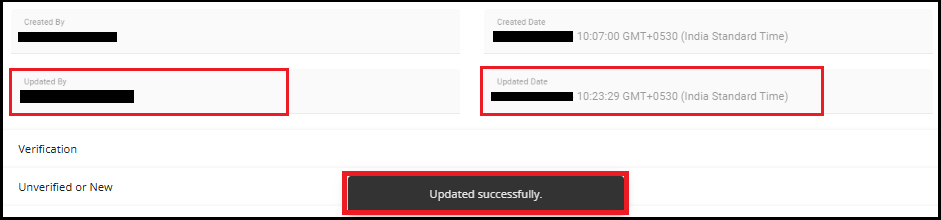
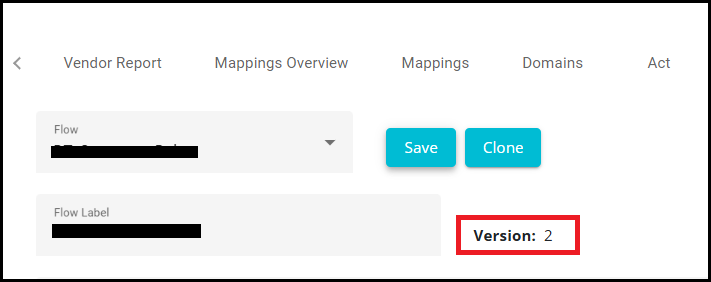
Whenever you update the flow and click 'Save', the Version Number will automatically increase to reflect the latest changes (e.g., Version: 2).
These basic configurations are common for any request flow, and the actual processing commences from the following stages.
Data Subject Access Request Flow runs through eight stages -- verification, unverified or new, in validation, need additional information, pre-processing (optional), in process, acknowledge, and deliver. (Copy and Summary of Data requests have an additional Deliver stage where the user data is emailed to them)