DSAR- Verification
DSAR-Flow (Verification):
Whenever a customer/user places the request, a verification email is sent to them. The 'Verification' configuration can be used to define everything required to send these emails. The entire stage can be automated without manual processing.
To automate the verification,
- Go to the 'Verification' stage.
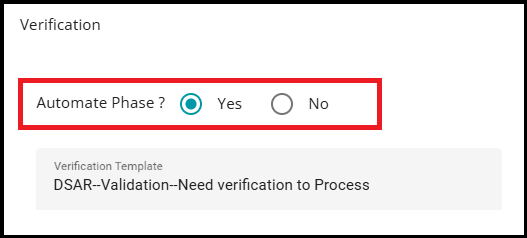
Note: By default, 'No' is selected for the Automate option.
- Select the 'Yes' option present next to the Automate Phase? on the screen.
The following are automated in the Verification stage of the flow when selecting Yes --
a. Reminder emails are automatically sent as per the configured frequency of sending them.
b. Requests are marked as closed automatically if they aren't verified within the configured due date.
c. Request status change criteria is also checked, and the request status is changed accordingly.
You can continue to configure the following options either way.
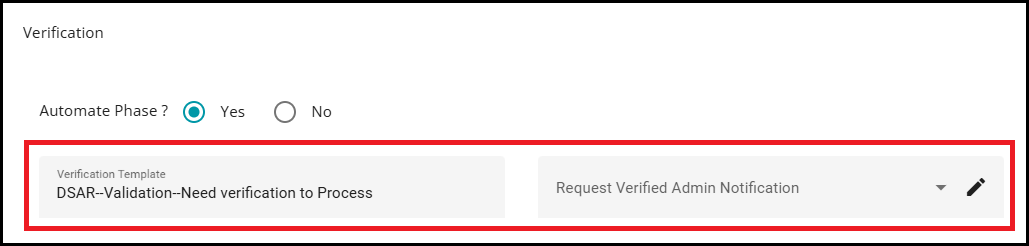
Verification Template: This is the email template that is sent to the customers after they place a service request.
Request Verified Admin Notification: This email template is configured to send an alert email to the admin after the user request is verified.
Note: This notification is especially helpful for manual processing scenarios.
Once the request email is verified, the admin receives a notification, enabling them to begin processing the request promptly.
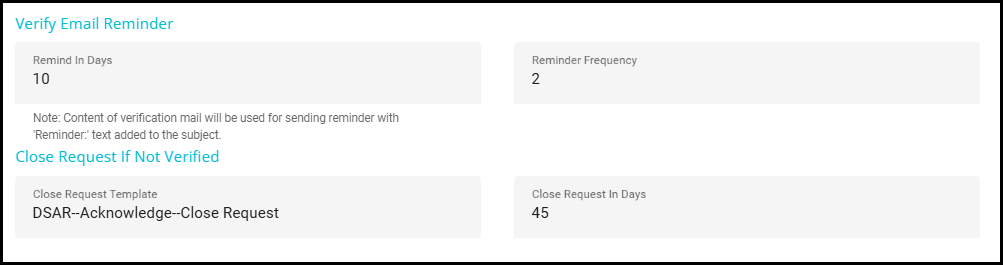
Verify Email Reminder -- in case the request is not verified, this option can be used to send a reminder email to the customers. "Automate" needs to be enabled for this to work.
- Remind in Days: used to specify the number of days after which the reminder email should be rolled out.
For example, if you set Remind in Days to 10, the first reminder will be sent on the 10th day after the request is submitted.
- Reminder Frequency: used to specify the number of times the reminder email should be sent to the customer/user for verification.
For example, if Reminder Frequency is set to 2, the system will send two reminders:
The first reminder on the 10th day
The second reminder on the 20th day (10 days after the first reminder)
Close Request If Not Verified -- if the request is not verified within the duration, this option can be used to close the request.
Close Request Template: Here, you can configure an email template that is sent to the customers for closing the request.
Close Request in Days: It specifies the number of days after which the submitted request is closed. This applies when "Automate" is enabled; otherwise, the admin/processor must close the request manually.
Request Status Change Criteria
This section allows you to configure rules for automatically changing the status of a request based on user input.
Field: Select the field from the request form to use as the criterion (e.g., State).
Condition: Choose the condition to match the field value (e.g., equals, not equals).
Value: Enter the value(s) to match the selected field.
The Value field accepts multiple values separated by commas.
For example, to match requests from California, enter CA (not California).
The values must be the identifier, not the display name.
Move to State: Select the stage to which the request should be moved if the condition is met (e.g., Accept, Close).
Template: Choose the email template to inform the user about the status change.

Skip Verification:
Requests are automatically marked as verified upon submission. No verification action is needed by the user.
No verification email is sent. Since the system treats the request as already verified, the verification email trigger is skipped.
Reduces processing time for request types where verification is unnecessary.
Useful when the requester's identity is prevalidated (e.g., authenticated portal users, internal systems).
When enabled, you can still use Custom Flow to decide which stage the request should move to after skipping verification.
Process Unverified Requests:
Unverified requests move to the next stage automatically when the verification due date expires. The system does NOT close the request.
This ensures that no request is lost due to missing or delayed verification from the user.
Helps organizations that want to comply with timelines even when the user does not verify.
Suitable for request types where verification is optional or not legally required.
Prevents unnecessary closure of requests and ensures they continue to flow through the process.

Custom Flow -- Traditionally, a verified request moves to the In-Validation stage to validate the end user information submitted. However, some request types do not require validation. In such cases, the system can skip either moving the request directly to the Process stage or completing the request immediately, depending on the configuration.
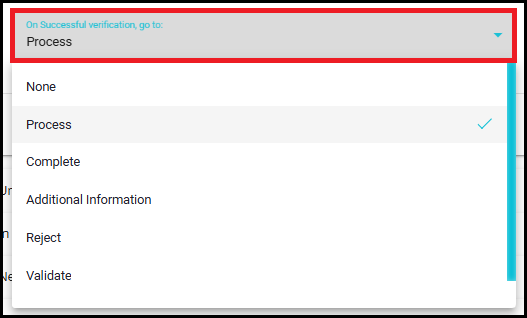
Enabling the Custom Flow option allows you to configure this behavior. When this option is checked, the system displays additional fields to choose the next stage for both successful and failed verification scenarios.

On successful verification, go to: Use this drop‑down menu to select the stage where the request should move after successful verification.
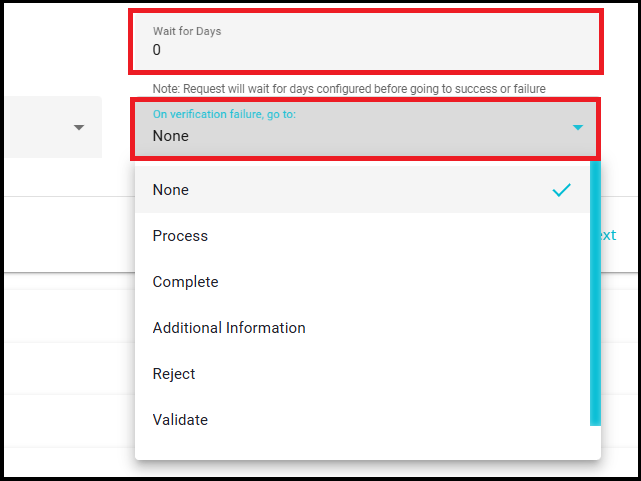
Wait for Days:Specifies the number of days the system should wait before moving the request to the next stage after successful or failed verification. This waiting period is applied before transitioning the request based on the configured outcome.
On verification failure, go to:Use this drop‑down menu to select the stage that the request should move to when verification is unsuccessful. The request will automatically transition to the selected stage once the verification fails (after the configured waiting time, if any).
Example:
If you select:
On verification failure, go to → Reject
Wait for Days → 2
Then:
The system waits for 2 days.
After 2 days, it automatically moves the request to the Reject stage.
Manual rejection isn't required.