DSAR-Unverified or New
Unverified or New
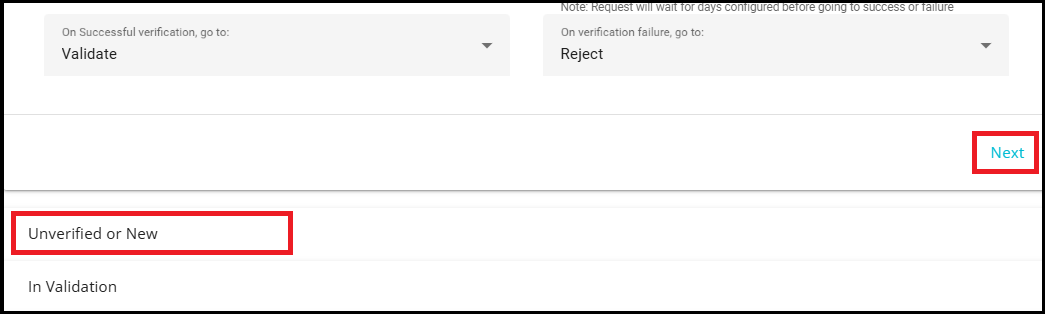
To access this section, use the Next option or click on the Unverified or New on the Flow screen. Here, the request is moved to the validation stage, or the user is sent a mail asking for additional information if needed.
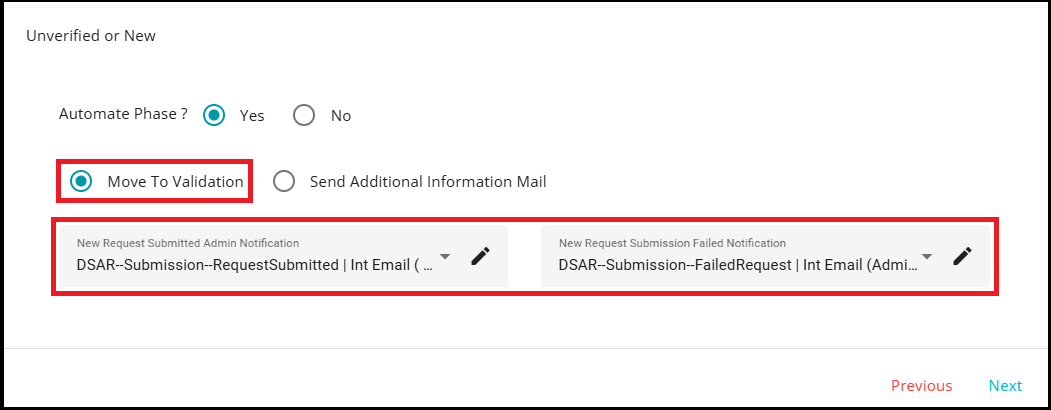
1. Move to Validation
This option is selected when the request is ready to proceed directly to the Validation stage.
Define the following:
New Request Submitted Admin Notification: This email is sent to the admin.
It informs them that a new DSAR request has been submitted.
New Request Submission Failed Notification: This email is sent to the admin whenever the request submission fails.
It alerts the admin that:
The submission from the Privacy portal was unsuccessful.
Further action may be needed to ensure the request is handled appropriately.
- If the system determines that more details are needed from the requester to process the DSAR, you can configure the flow to automatically send an additional information email by selecting the Send Additional Information Mail option.
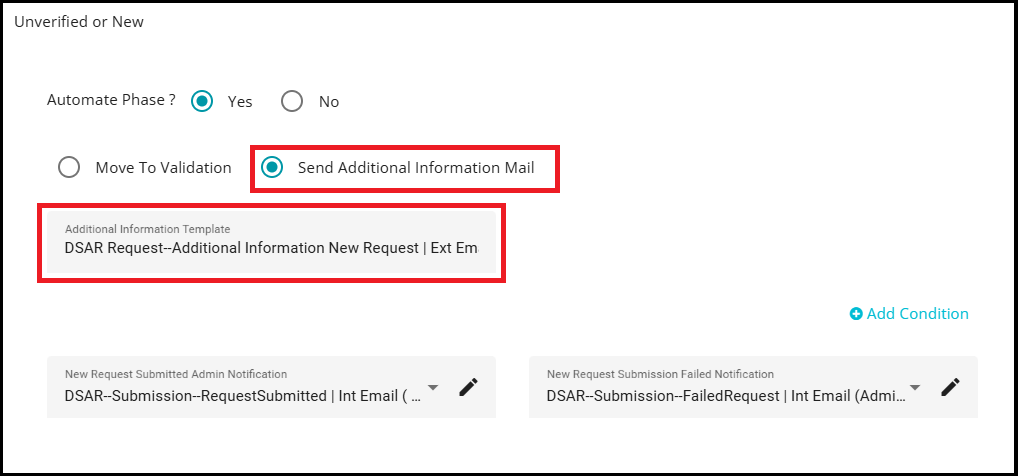
2. Send Additional Information Mail:
When this option is chosen, the system will prompt the user to provide the missing information before the request can move to the next stage.
Define the following:
Additional information Template: This field allows you to choose the email template that will be sent to the requester.
- The template informs the user that certain mandatory information is missing and must be provided for further processing.
Adding Conditions for Additional Information
If you want the system to check specific missing fields before sending the Additional Information email, you can configure conditions in this section.
To add a condition:
- Click on '+ Add Condition'.
This adds a new rule that the system will evaluate.
- Open the 'Field' drop‑down menu.
A list of all available input fields is displayed.
- Select the required field from the menu.
The system checks whether the requester has provided a value for this field. If the selected field is not provided by the requester, the system sends the Additional Information email using the configured template.

Adding Multiple Fields Inside a Condition Set
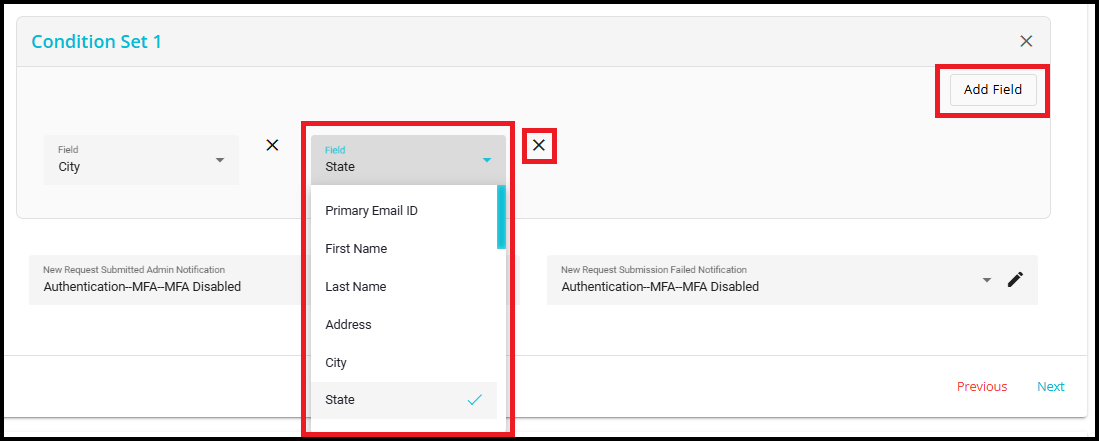
Inside the Condition Set, click "Add Field".
Select the required field from the dropdown menu.
Repeat the process to add more fields inside the same Condition Set.
If you want to remove any field inside a Condition Set, simply click on the "X" icon located to the right side of that field.
How it works
When you add multiple fields inside one Condition Set, the system applies AND logic.
This means all fields inside the set must be filled by the requester while submitting the form.
If any of the fields in the set are missing, the system sends the Additional Information email.
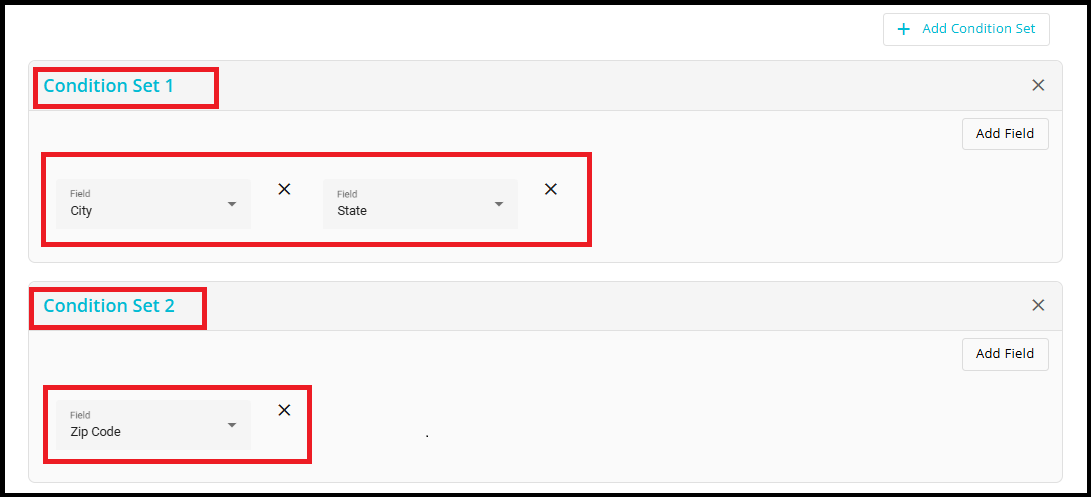
Example (Condition Set 1)
Fields added: City, State
System rule:
The user must fill both City AND State.
If either City or State is missing → Send Additional Information email.
Adding Another Condition Set
Click on "+ Add Condition Set" to create an additional set (e.g., Condition Set 2).
Inside this new set, choose the required field.
You can add one or multiple fields as needed.
How it works
Each Condition Set is treated as an OR block.
This means:
If any one Condition Set is satisfied, the system will not send the Additional Information email.
If all Condition Sets fail, only then the system sends Additional Information email.
Example:
Condition Set 1
City
State → User must fill City AND State
Condition Set 2
- Zip Code → User must fill Zip Code
System Logic
The rule becomes: (City AND State) OR (Zip Code)
The system checks:
If the user filled City and State, set 1 condition Satisfies → No email sent.
If the user filled Zip Code, set 2 condition Satisfies → No email sent.
If the user did not fill either combination, both sets fail → System sends Additional Information email.
This stage can also be automated, like the previous stage. To automate this stage,
- Mark the Automate Phase? option as Yes.
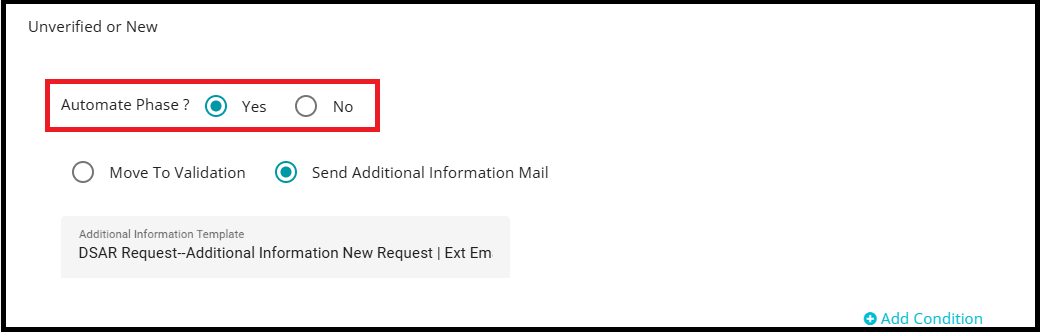
- When automating this stage of the flow, the request is either moved directly to the Validation stage or an Additional Information email is sent to the user, depending on the configuration defined in the flow.